Astro + WordPress: Keep Your CMS, Replace the Slow Frontend
Learn how to use WordPress as a headless CMS with Astro: WPGraphQL setup, dynamic routes, SEO with Yoast, forms, previews and automatic rebuilds, plus when you should not go headless.
 Nathaly Rodriguez Senior frontend developer
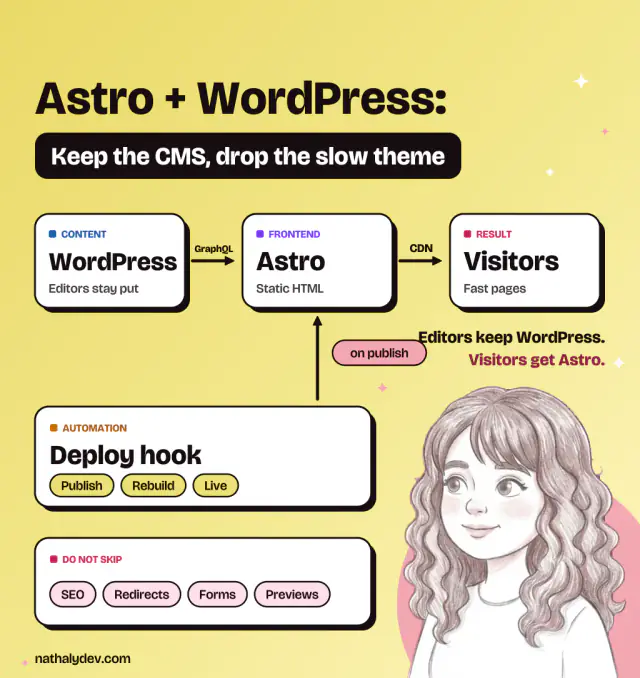
Astro + WordPress: Keep Your CMS, Replace the Slow Frontend
A lot of WordPress sites are slow for the same reason: the theme and the plugins decide what the browser has to download, and nobody is in charge of that total. Page builders, sliders, analytics, form plugins and a dozen small scripts add up.
The editors, though, usually love WordPress. They know the dashboard, the content is there, and migrating it would be a project of its own.
Headless WordPress keeps the part people like and replaces the part that is slow. WordPress stays as the place where content is written. Astro builds the website that visitors actually see.
This guide covers how that works in practice, including the parts most tutorials skip: SEO, previews, forms and rebuilds.
What “Headless” Means Here
In a classic setup, WordPress does everything: stores content, runs PHP, renders the theme and serves HTML.
In a headless setup, WordPress only does the first job. It exposes content through an API, and a separate frontend requests it:
Editor → WordPress admin → API (GraphQL or REST)
                                  ↓
                         Astro fetches content
                                  ↓
                    Static HTML on a CDN (Vercel, Netlify…)
Visitors never touch WordPress. They get pre-built HTML from a CDN, which is fast and has far fewer things to attack.
Why Astro Is a Good Fit
Astro ships no JavaScript by default. A marketing site or a blog is mostly text and images, so most pages need none. Where you do need interactivity (a menu, a form, a search box), you add a small island for it.
That is a better starting point than a heavy theme, and you are not forced into a client-side framework to render content that never changes.
Step 1: Prepare WordPress
You need an API. There are two common options.
WPGraphQL is a plugin that adds a GraphQL endpoint. You ask for exactly the fields you need, and you can fetch posts, pages, menus and custom fields in one request. It is my default choice.
The REST API ships with WordPress. It needs no plugin, but you often make several requests to assemble one page.
For this guide I will use WPGraphQL.
- Install and activate WPGraphQL.
- If you use custom fields, add the matching extension (for example, WPGraphQL for Advanced Custom Fields).
- In Settings → Permalinks, choose anything other than “Plain”.
- Open
/graphqlon your site to confirm the endpoint responds.
Keep the WordPress site on a separate subdomain, for example cms.yoursite.com, and the public site on the main domain.
Step 2: Create the Astro Project
npm create astro@latest
Store the endpoint in an environment variable:
# .env
WORDPRESS_API_URL=https://cms.yoursite.com/graphql
Then write one small helper so every page asks WordPress in the same way:
// src/lib/wordpress.ts
const API_URL = import.meta.env.WORDPRESS_API_URL;

export async function wpQuery<T>(query: string, variables = {}): Promise<T> {
  const res = await fetch(API_URL, {
    method: 'POST',
    headers: { 'Content-Type': 'application/json' },
    body: JSON.stringify({ query, variables }),
  });

  if (!res.ok) {
    throw new Error(`WordPress responded with ${res.status}`);
  }

  const { data, errors } = await res.json();
  if (errors) throw new Error(errors[0].message);

  return data;
}
Failing loudly is deliberate. If WordPress is down during a build, you want the build to fail, not to publish empty pages.
Step 3: Render Posts and Pages
Create a dynamic route for posts:
---
// src/pages/blog/[slug].astro
import { wpQuery } from '../../lib/wordpress';

export async function getStaticPaths() {
  const data = await wpQuery<{ posts: { nodes: { slug: string }[] } }>(`
    query { posts(first: 100) { nodes { slug } } }
  `);

  return data.posts.nodes.map((post) => ({
    params: { slug: post.slug },
  }));
}

const { slug } = Astro.params;

const { post } = await wpQuery<{ post: any }>(
  `query Post($slug: ID!) {
    post(id: $slug, idType: SLUG) {
      title
      date
      content
      featuredImage { node { sourceUrl altText } }
    }
  }`,
  { slug }
);
---

<article>
  <h1>{post.title}</h1>
  <div set:html={post.content} />
</article>
A few notes on this code:
first: 100is the page size. If you have more posts than that, you need to paginate withpageInfoandafter.set:htmlrenders the HTML WordPress produces. That is fine for content your editors write, but it is still HTML from a CMS, so do not render user-submitted content that way.- Pages work the same way, with a
pagesquery and a catch-all route like[...slug].astro.
Step 4: SEO Without Losing Yoast
This is the part that decides whether the migration is safe. Your editors already fill in titles, descriptions and social images in Yoast or Rank Math. You should not ask them to do it twice.
Both plugins have a WPGraphQL extension (WPGraphQL Yoast SEO, and the Rank Math equivalent) that exposes those fields. Query them and pass them to your layout:
---
const { post } = await wpQuery(`query { ... post(...) { seo { title metaDesc canonical } } }`);
---

<head>
  <title>{post.seo.title}</title>
  <meta name="description" content={post.seo.metaDesc} />
  <link rel="canonical" href={post.seo.canonical} />
</head>
Also make sure that you:
- Generate a sitemap on the Astro side with
@astrojs/sitemap. - Keep the same URL structure as the old site.
- Add 301 redirects for every URL that changes. This is where migrations lose rankings, and it is easy to forget.
- Block the WordPress subdomain from search engines, so the CMS does not compete with your real site.
Step 5: Forms
Form plugins render their own HTML and scripts, and they depend on the WordPress frontend. They do not carry over.
Your options:
- Build the form in Astro and post it to a service such as Formspree or Basin.
- Post it to your own endpoint, with an adapter that supports server routes.
- Keep a form plugin, but submit to its REST endpoint from your own form.
I prefer the first one for simple contact forms. It removes a plugin and a script from every page.
Step 6: Rebuilding When Content Changes
With a static site, publishing a post in WordPress does not update the website by itself. You need WordPress to tell your host to rebuild.
- In Vercel (or Netlify), create a deploy hook. It is a URL.
- In WordPress, call that URL when content is published. A small plugin or a snippet on the
publish_postaction does it. - The host rebuilds and the new content goes live in a minute or two.
If you need changes to show up immediately, Astro can render on demand instead, with a server adapter and caching. That trades a bit of speed for freshness, and it is the right call for content that changes often.
Step 7: Previews
Editors want to see a draft before publishing. A static site cannot do that on its own.
The practical solution is a preview route rendered on demand. It reads a draft from WordPress using an authenticated request, and WordPress links to it from the “Preview” button. It takes extra work, so plan for it from the start if your editors depend on previews.
Migrating Without Losing Traffic
Before you launch:
- Crawl the old site and export every URL.
- Map each old URL to a new one.
- Configure 301 redirects for every change.
- Check titles, descriptions and canonical tags on a sample of pages.
- Submit the new sitemap in Google Search Console.
- Compare Core Web Vitals before and after.
When Headless WordPress Is Not the Answer
Be honest with yourself about these cases:
- You rely on plugins that render on the frontend, such as membership, LMS, bookings or WooCommerce checkout. Those are tied to the theme, and rebuilding them is expensive.
- Your editors depend on a visual page builder. Elementor or Divi content does not translate cleanly to a custom frontend.
- Nobody maintains code. Headless means two systems and a deploy pipeline. If there is no developer, a well-optimized classic theme may serve you better.
- The real problem is hosting or images. Sometimes caching, a CDN and compressed images fix most of the slowness for a fraction of the effort.
I would rather tell you that before you spend money than after.
Key Takeaways
- Headless WordPress lets editors keep the dashboard while visitors get fast, static pages.
- WPGraphQL plus Astro is a clean combination: one request per page, no heavy theme.
- Plan SEO, forms, previews and rebuilds from the first day. They are where headless projects usually run into trouble.
- Redirects decide whether you keep your rankings.
- It is not for every site. Plugin-heavy or builder-driven sites often do better optimized than rebuilt.
Not Sure If Headless Fits Your Site?
I can review your WordPress site, find out what is making it slow, and tell you whether a headless rebuild is worth it or whether a few targeted fixes are enough.